Using Jaw Viewer
Open your first scan
Have the folder or the download from your clinic ready. Start on a computer, especially if the scan is large.
Find the scan files
Look for the DICOM export. It may be a folder on a disc or a USB stick, or a zip download. Copy the whole folder to your computer and keep its contents together. You do not need the viewer program that came on the disc.
A file called DICOMDIR is an index, not the scan. Choose the folder that holds it, so the viewer can also read the images it points to. The image files often have no familiar extension.
Open it in the viewer
- Open the viewer. The Library has Choose folder and Choose files buttons.
- Choose the folder with the image files, or a zip, or the files themselves. Dropping them into the window works too.
- Wait while the viewer reads the files and builds the scan. If it lists several series, check their dates and sizes and pick the one you want.
- Open the finished scan card to start in View.
The files are read in this tab and are not changed.
Your first view
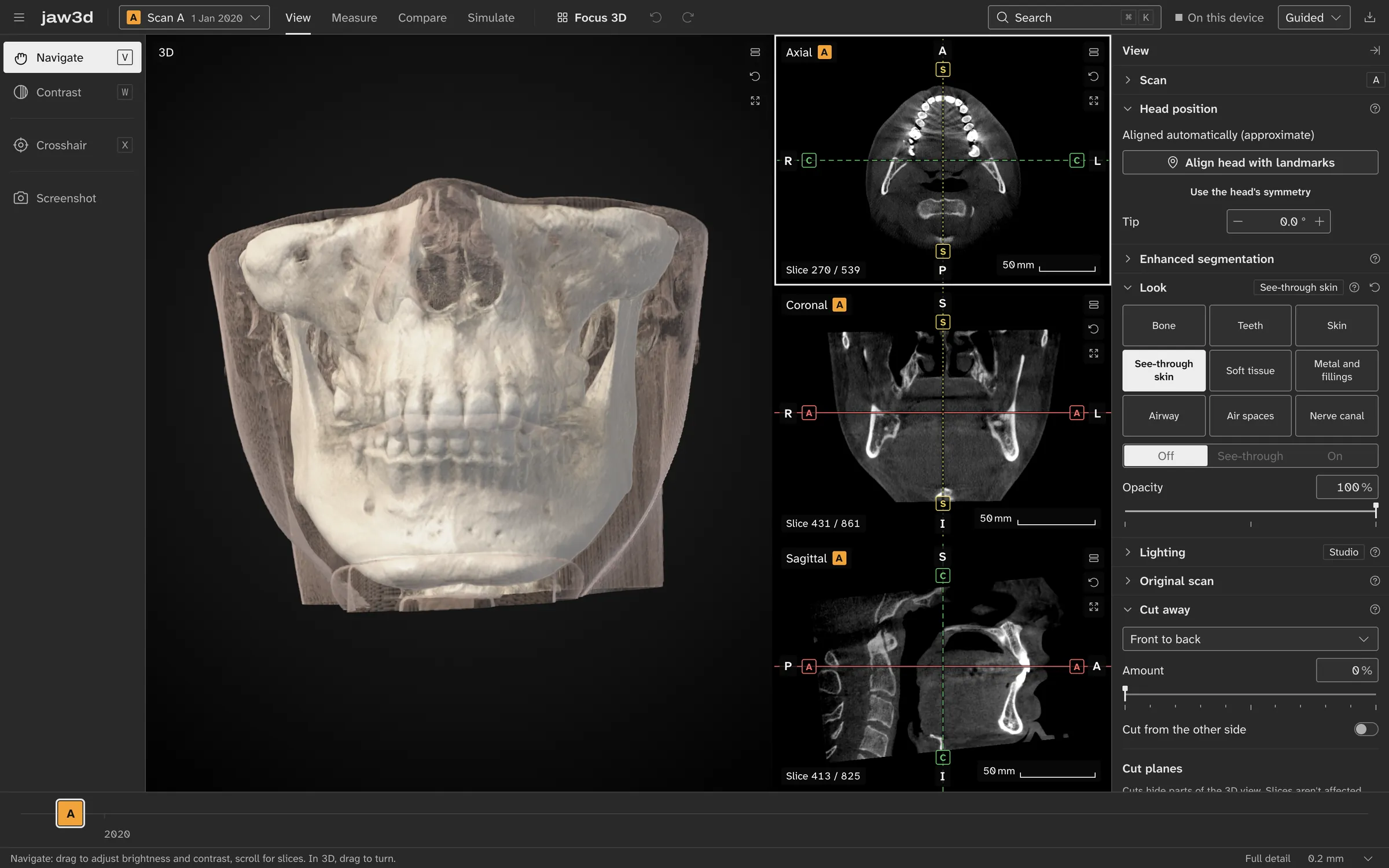
- 3D view: turn the skull and change the visible surface.
- Slice views: inspect a point from different directions.
- Look controls: choose bone, teeth, skin and the air spaces.
Find the 3D view, then a slice through the same scan. Turn the skull, click in a slice and watch the other views follow. The viewing guide goes through the controls.
If it does not open
- No scan found: choose the whole scan folder, not only DICOMDIR or the vendor's program.
- Several series: look at the preview, date and size. A small series may be a different image, not the jaw scan you want.
- Unsupported encoding: read the error. Ask the clinic for an uncompressed DICOM export if that encoding is not supported yet.
- Memory error: close other large tabs, or try a computer with more memory. Keep the original files.
- Unexpected shape: check the chosen series and the slices before you trust the 3D surface.
Do not post the files or any identifying tags in a public bug report.